
You may know how many people visit your website, how many start a chat, and how many become leads.
But what you also need to know is where your visitors come from, which sources start conversations, and which sources actually turn into leads.
A search ad, referral website, email campaign, social post, or direct visit can bring very different types of visitors. Without traffic source tracking, it can be difficult to see which channels are actually contributing to lead generation.
NoForm AI’s Traffic Sources feature gives you this information directly in the dashboard. It shows which sources drive visitors, chats, and leads, while the GA4 integration takes that data a step further by sending chatbot engagement and lead events to your own Google Analytics property.
Together, they help you understand not just how much traffic your website gets, but which traffic creates opportunities for your business.
Why tracking traffic sources matters for lead generation
Not all website traffic has the same value.
One source might bring thousands of visitors but very few leads. Another might bring much less traffic but generate conversations and enquiries at a much higher rate.
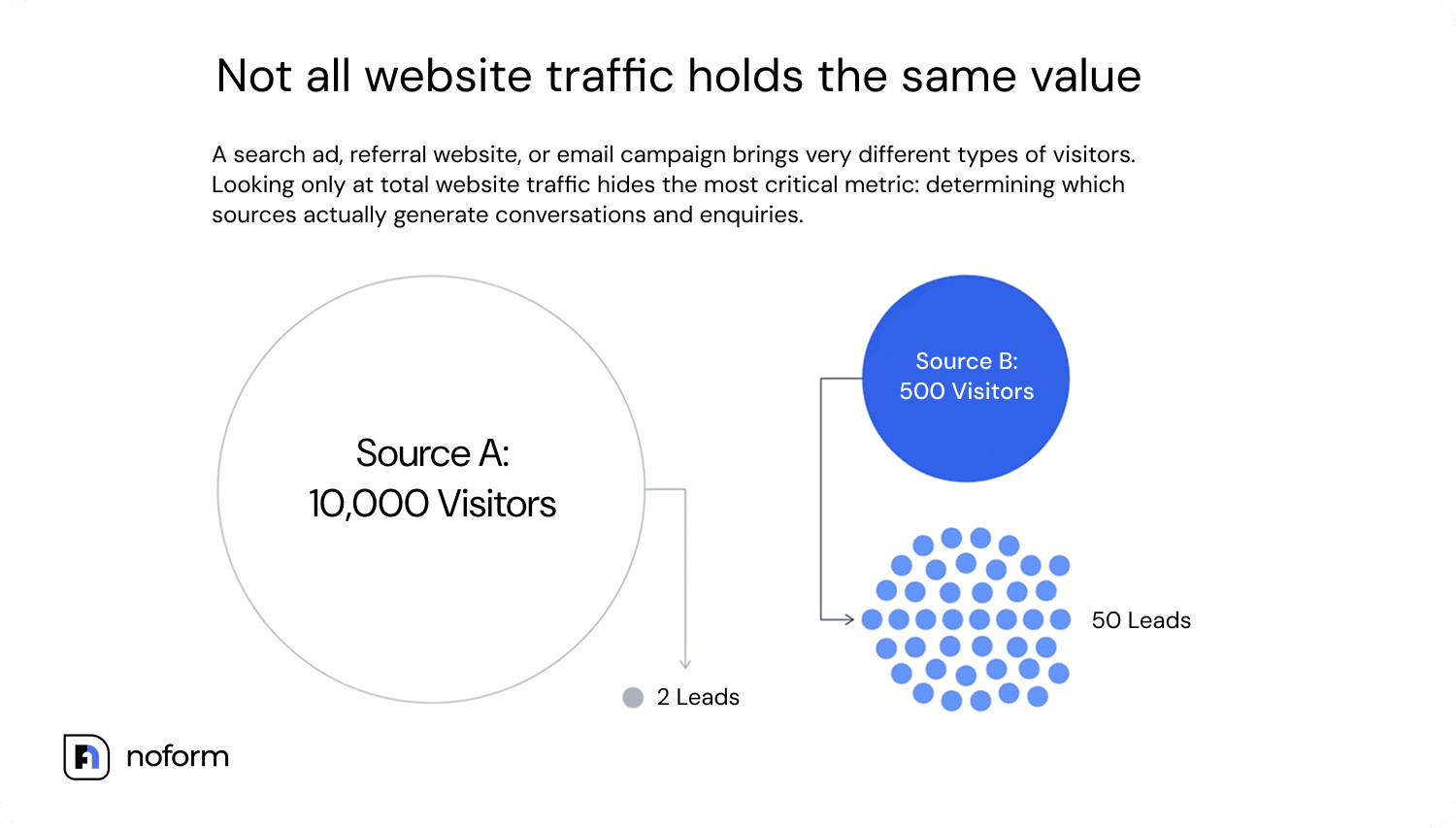
Looking only at total website traffic can hide this difference.
NoForm AI’s Traffic Sources table lets you compare sources based on visitors, chats, leads, visitor-to-lead and chat-to-lead conversion rates.
For example, you might discover that:
- one advertising campaign brings a lot of visitors but few leads;
- a smaller referral website consistently produces enquiries;
- a particular email campaign generates visitors who are more likely to start a conversation;
- a source with relatively little traffic has a surprisingly strong lead conversion rate.
That information can help you make better marketing decisions. Thus, instead of asking only “Where does our traffic come from?”, you can start asking “Which traffic sources actually produce leads?”
This is especially useful for businesses investing in paid advertising, email marketing, partnerships, content, or other campaigns where understanding return from different traffic sources matters.
What are NoForm AI Traffic Sources?
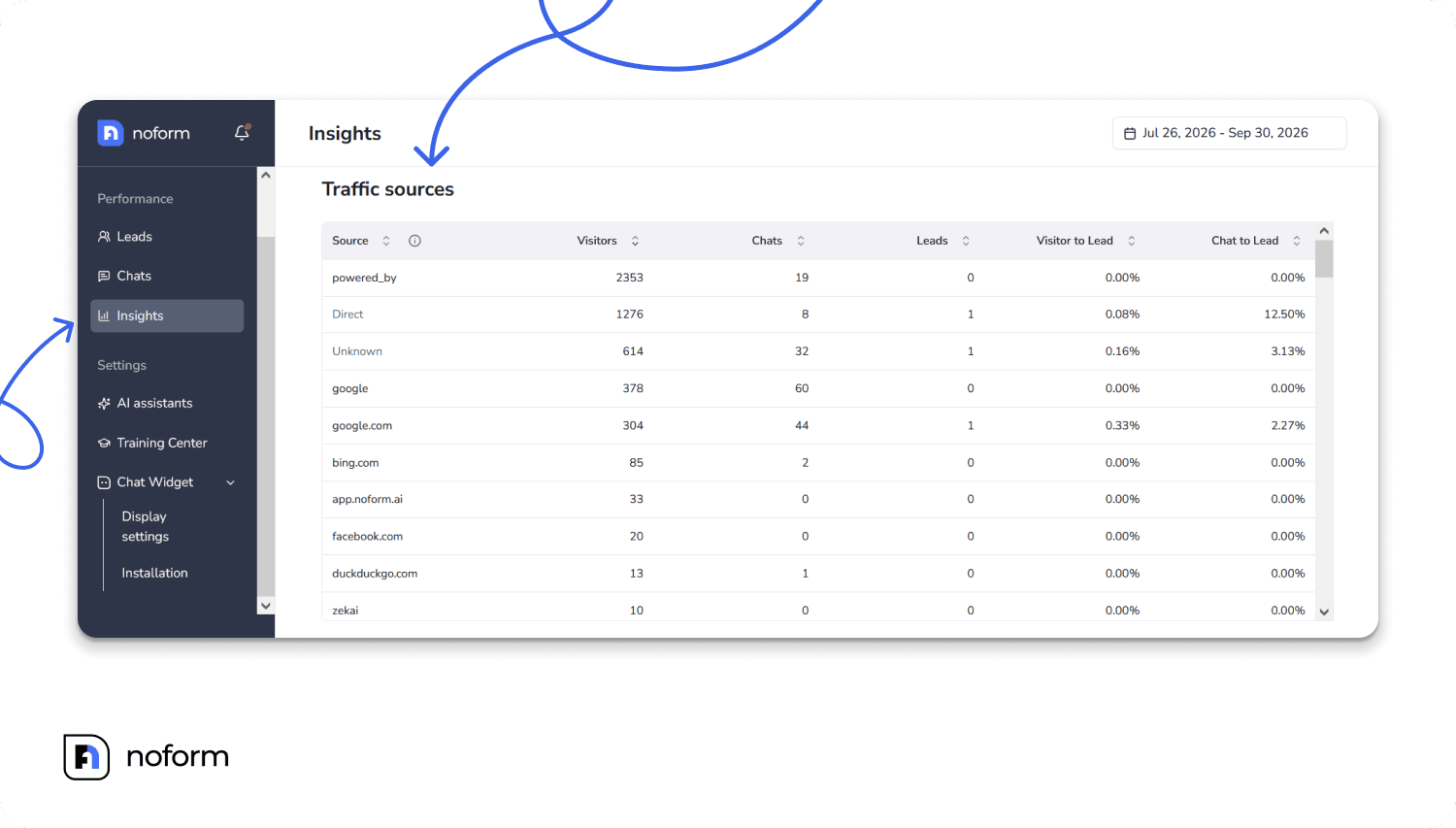
Traffic Sources shows you which websites, campaigns, and other sources send visitors to pages where your NoForm AI chatbot is installed.
You can find the feature in the Insights section of your NoForm AI dashboard. The Traffic Sources table shows each source alongside the number of visitors, chats, leads, and conversion rates.
Metric | What it tells you |
Visitors | People from that source who loaded a page with your chatbot |
Chats | Conversations started by visitors from that source |
Leads | Conversations from that source that became leads |
Visitor to Lead | Leads divided by visitors from that source |
Chat to Lead | Leads divided by chats from that source |
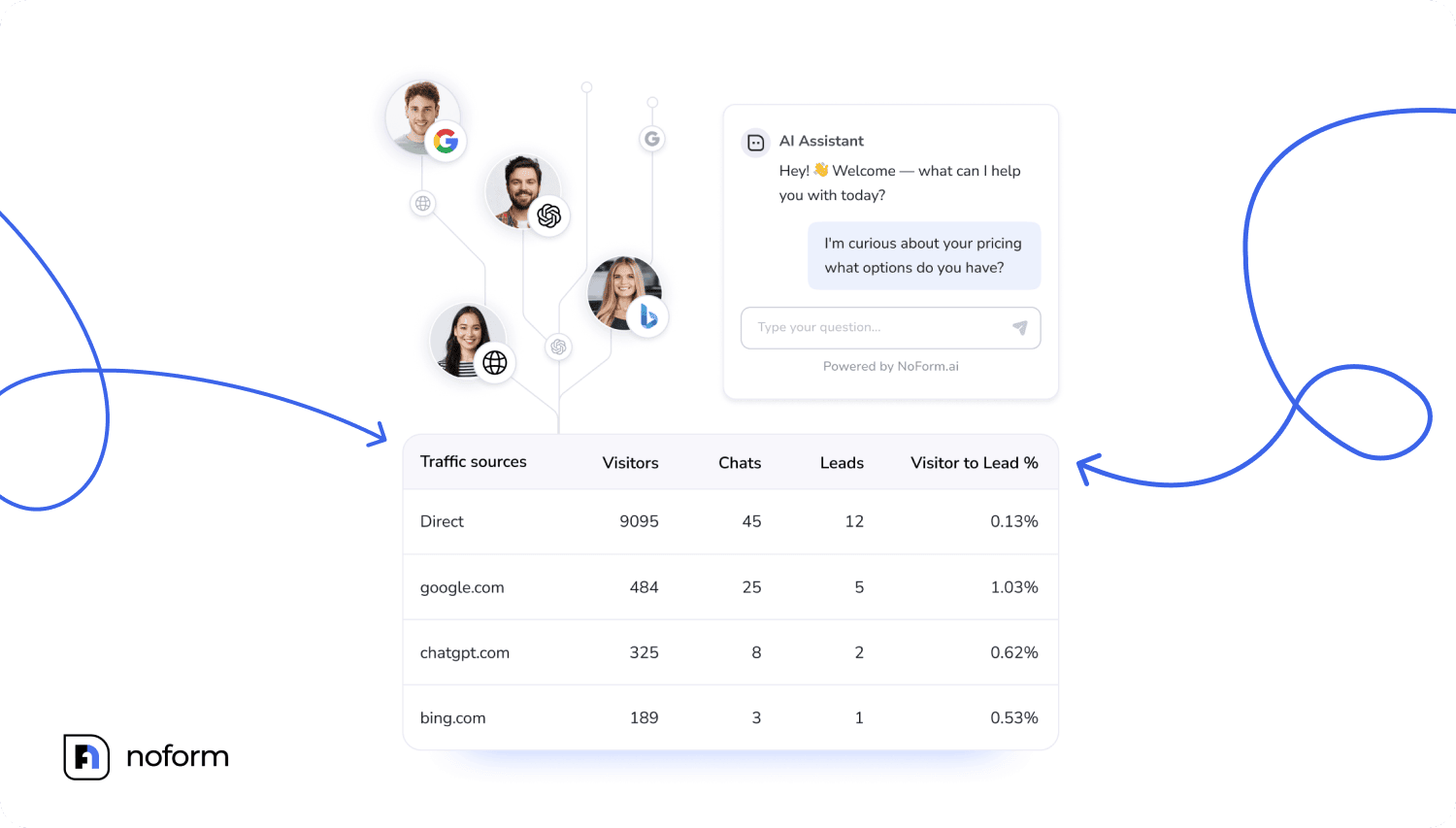
The conversion rates add useful context to visitor and lead numbers. A source with fewer visitors can still be valuable if those visitors are much more likely to become leads.
This makes Traffic Sources useful not just for seeing where visitors come from, but for understanding which sources contribute to website lead generation and where your marketing efforts may be working best.
How does NoForm AI identify a traffic source?
NoForm AI uses information available when the chatbot widget loads to determine where a visitor came from.
It looks at two main signals:
UTM parameters
If a visitor arrives through a link containing UTM parameters, the utm_source value becomes the source name. NoForm AI reads utm_source, utm_medium, and utm_campaign, with utm_source taking priority when determining the source shown in the Traffic Sources table.
For example, a campaign link could contain:
utm_source=newsletter&utm_medium=email&utm_campaign=spring_sale
The Traffic Sources table would record the newsletter as the source.
This is particularly useful when several campaigns send traffic to the same page. Adding UTM tags lets you distinguish traffic from different emails, ads, social posts, or campaigns.
Referrer
When there is no utm_source, NoForm AI checks the referring website.
For example, if someone clicks a link on another website and arrives on your site, the referring domain can become the source. NoForm AI normalizes the domain by removing www. and converting it to lowercase.
If neither a UTM source nor an external referrer is available, the visitor may be recorded as Direct or Unknown.
NoForm AI uses first-touch attribution
One important detail to understand is that NoForm AI records a visitor’s source when they first load a page containing the chatbot.
That source stays with the visitor even if they later browse other pages on your website.
For example, imagine someone:
- Finds your website through Google.
- Lands on a service page with NoForm AI.
- Visits your pricing page.
- Opens the chatbot there.
- Becomes a lead.
The lead remains attributed to the original source: Google.
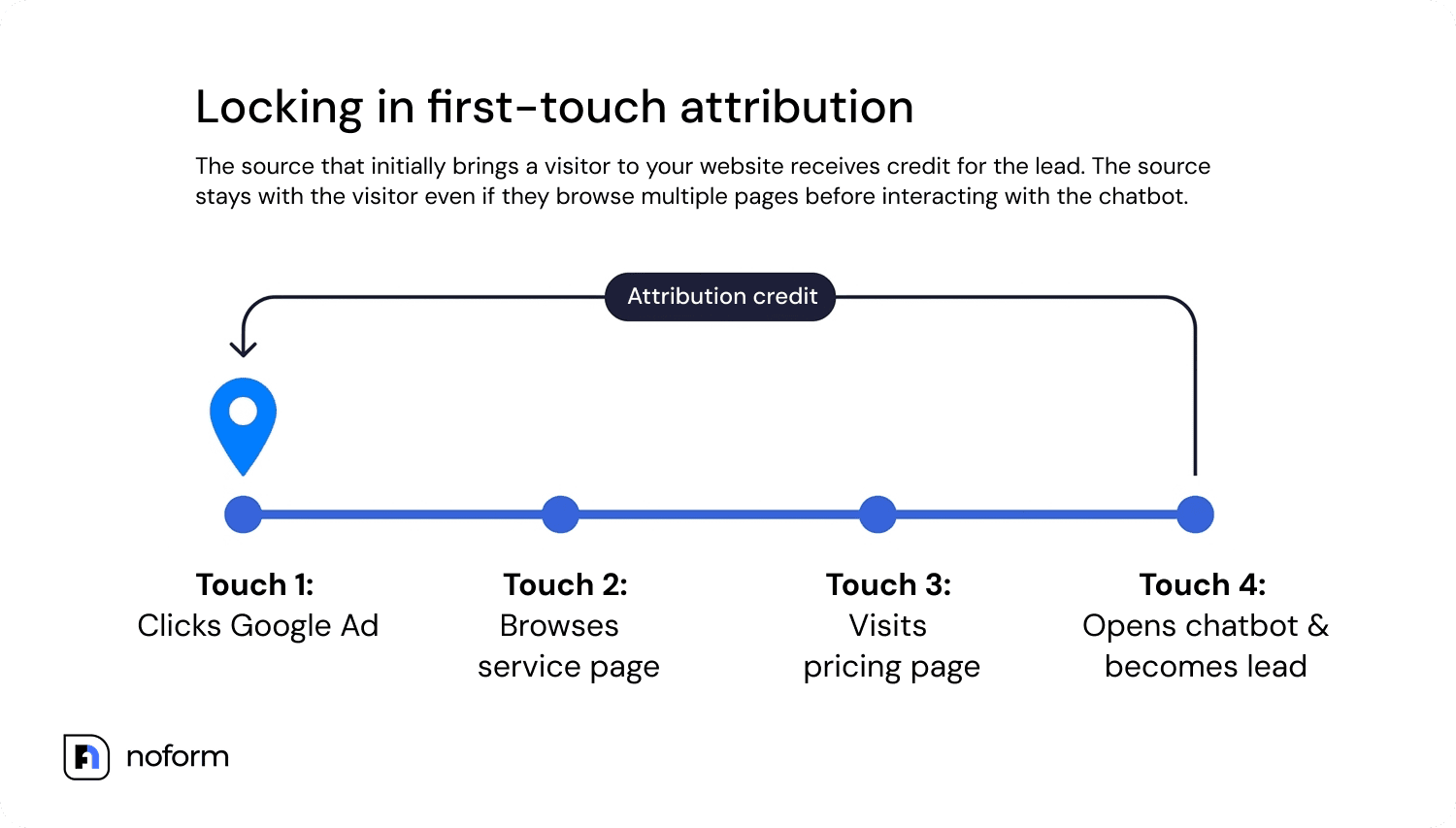
This is first-touch attribution, meaning the source that first brought the visitor to your website receives the credit rather than the last page or route they visited.
This can be particularly useful when visitors don’t start a conversation immediately. A visitor may discover your site through search, read several pages, and only then decide to interact with your chatbot.
What do Direct, Unknown, and Test Chat mean?
These labels need to be interpreted differently from named sources such as google.com or a campaign name.
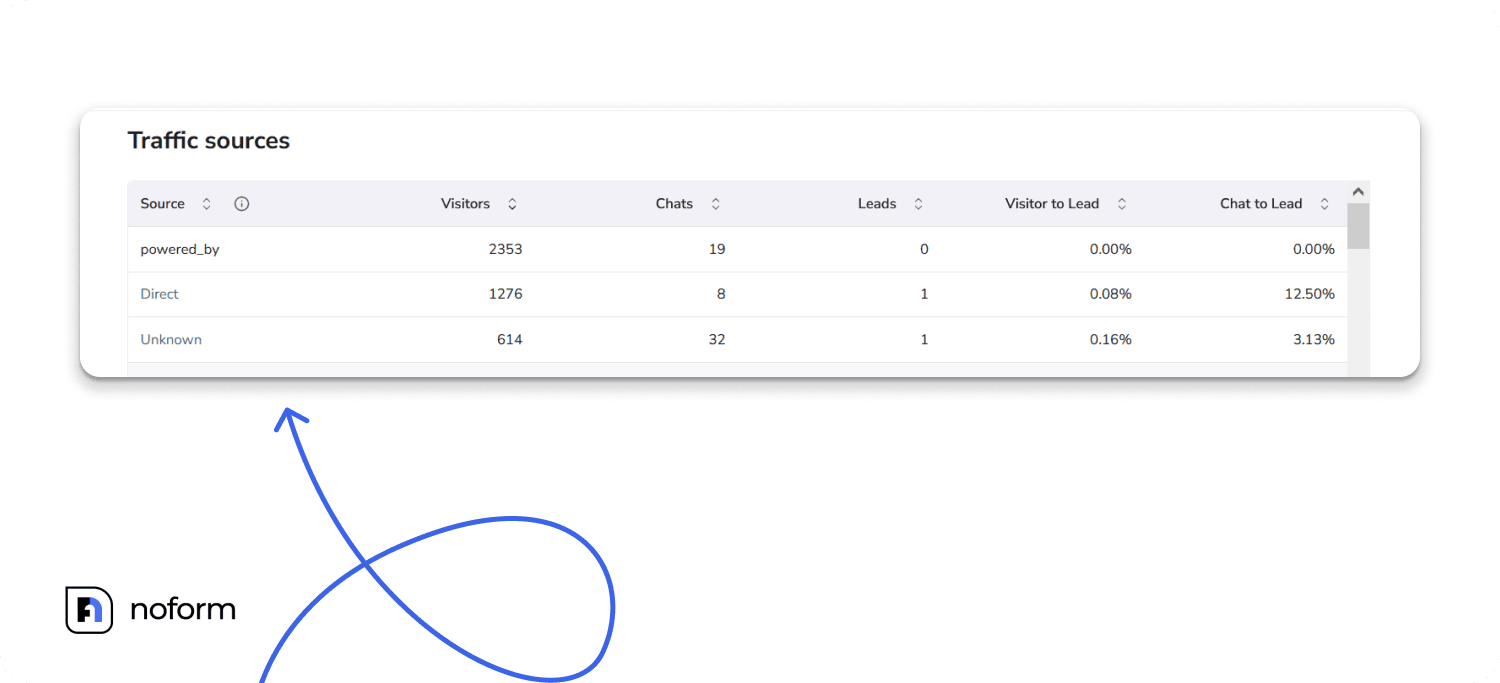
Direct means no referring website was captured. It can include people who typed your URL, used a bookmark, followed certain internal links, or arrived through browsers and apps that do not pass referral information. A large Direct number therefore does not necessarily mean that everyone intentionally typed your URL.
Unknown is used for traffic without available source information, including conversations recorded before NoForm AI’s source tracking was introduced.
Test Chat keeps your own chatbot tests and previews separate from real visitor traffic.
Bring lead attribution into your other systems
Traffic source information doesn’t have to stay inside the NoForm AI dashboard.
If you use a webhook, NoForm AI includes the source with each lead sent to your endpoint. The source is sent along with the other lead information collected from the conversation (like the chat ID, bot ID, origin URL, location fields, chat summary, and collected attributes).
That means you can pass attribution into your own systems and connect a lead with the source that originally brought them to your website.
And if you also use Google Analytics, you can take this analysis further.
Connect NoForm AI to Google Analytics 4
Traffic Sources gives you a focused view of chatbot attribution inside NoForm AI. If you want to combine chatbot activity with your broader website analytics, you can connect NoForm AI to Google Analytics 4.
Once connected, NoForm AI sends two events to your existing GA4 property:
- new_chat_initiated — when a visitor starts a chat
- generate_lead — when a visitor shares contact information and becomes a lead
The lead event can also include the lead_source parameter, allowing you to analyze chatbot leads based on where the visitor originally came from.
This lets you see chatbot activity alongside the rest of your website analytics.
This lets you view chatbot activity alongside the rest of your website analytics and answer questions such as:
- Which traffic sources generate the most chatbot interactions?
- Which sources generate the most leads?
- Which campaigns drive visitors who are more likely to become leads?
- How does chatbot engagement fit into the overall website conversion journey?
How to set up the GA4 integration
Setting up the integration requires your GA4 Measurement ID and admin access to your NoForm AI organization.
The setup itself is straightforward:
- Copy your GA4 Measurement ID, formatted like G-XXXXXXXXXX, from Google Analytics → Admin → Data streams.
- In NoForm AI, open Manage organization → Integrations.

- Paste the Measurement ID into the Google Analytics 4 card.
- Click Save.
- Register lead_source as an event-scoped custom dimension in GA4 if you want to use the source in your reports.
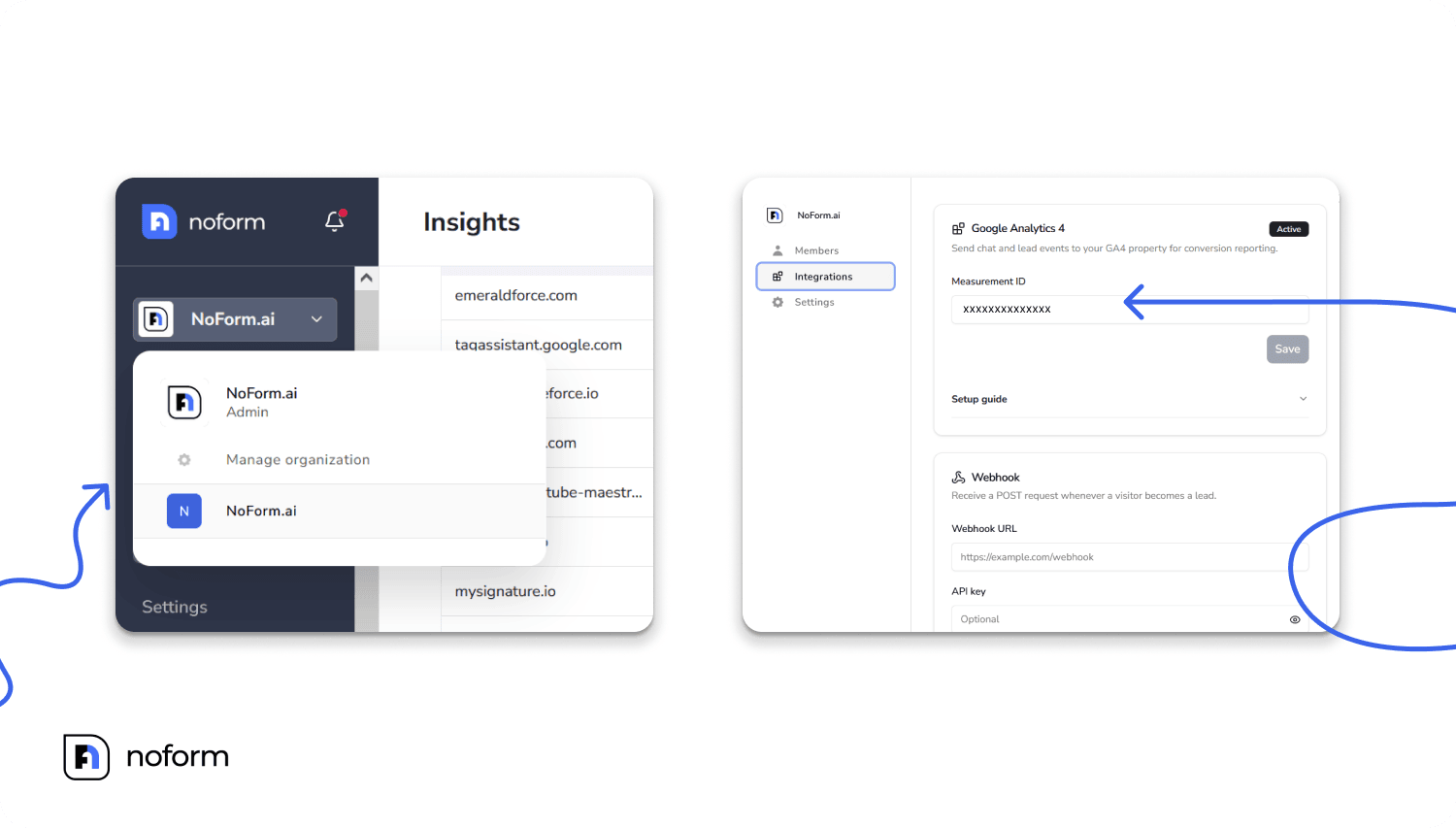
Once configured, the events are sent through the Google tag already installed on your website. NoForm AI does not install Google Analytics or change your existing consent settings.
Traffic Sources vs. GA4: when should you use each?
You don’t necessarily have to choose one. The two features serve slightly different purposes.
Use NoForm AI Traffic Sources when you want a quick view of chatbot performance
It’s built into the NoForm AI Insights dashboard and gives you an at-a-glance view of visitors, chats, leads, visitor-to-lead, and chat-to-lead conversions by source.
Use GA4 when you want to combine chatbot data with your broader website analytics
GA4 lets you analyze NoForm AI events alongside the rest of your website activity and use your existing analytics and reporting workflows.
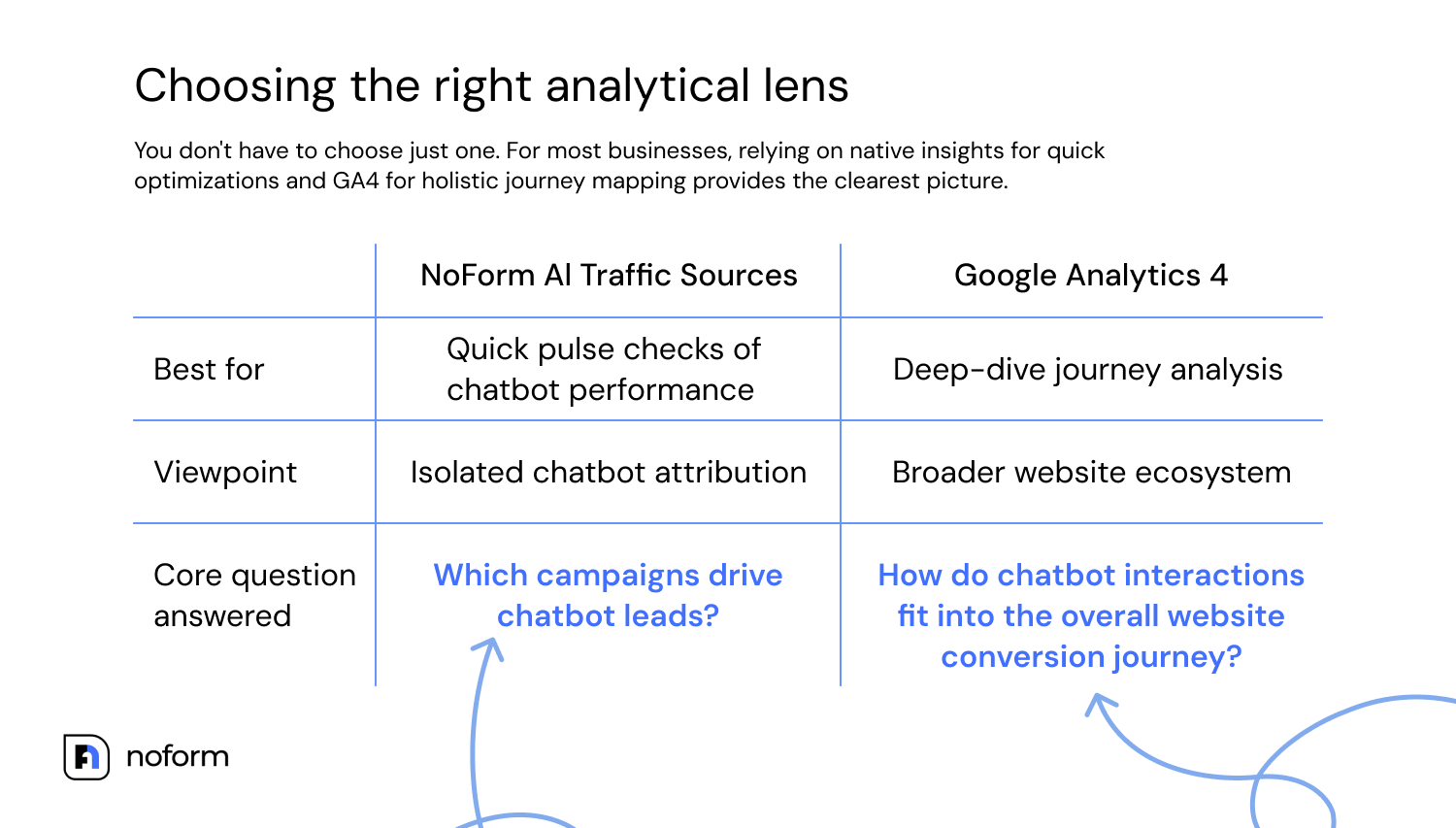
For many businesses, using both gives you the clearest picture:
NoForm AI → Which sources generate chatbot leads?
GA4 → How do those chatbot interactions fit into the overall customer journey?
Using both can give you a more complete view of how marketing traffic turns into chatbot engagement and leads.
How to get better traffic source data
The quality of your attribution depends partly on the information available when visitors arrive.
A few simple practices can make the data more useful:
- Use consistent UTM parameters for marketing campaigns.
- Tag links in emails and ads with utm_source.
- Give different campaigns meaningful source names when you need to distinguish them in the Traffic Sources table.
- Compare leads and conversion rates, not just visitor volume.
- Treat Direct as an incomplete attribution category rather than assuming every Direct visitor typed your URL.
- Connect GA4 if you want chatbot activity alongside your broader website analytics.
NoForm AI starts capturing referrer and UTM information when the existing chatbot widget loads, so there is no separate tracking installation required for Traffic Sources.
Turn traffic data into better marketing decisions
Knowing how many people visit your website is useful. Knowing which visitors start conversations and become leads is much more actionable.
NoForm AI’s Traffic Sources feature helps make that difference visible by putting visitors, chats, leads, visitor-to-lead, and chat-to-lead conversions side by side.
GA4 integration adds another layer by putting chatbot events into the same analytics environment you already use for your website.
Together, these features help answer a more important question than “How many people visited?”
“Which visitors turned into real opportunities?”
And once you know where your best leads come from, you can make better decisions about where to invest your marketing time and budget.
Log in to your NoForm AI dashboard today to explore your Traffic Sources, connect your GA4 account, and start tracking your most valuable channels. Or book a demo call if you need help getting started.

Frequently Asked Questions
Do I need to install anything to start tracking traffic sources?
No. The chat widget you already have on your site captures referrer and UTM data the moment it loads, and the Traffic sources table fills in as new visits arrive.
Why is my Direct row so large?
Direct absorbs every visit with no captured referrer: typed addresses, bookmarks, internal links, and browsers or apps that strip referrer data. Tagging your outbound links with utm_source moves that traffic into named rows and shrinks this one over time.
How long before events show up in GA4?
They land in GA4’s realtime reports within a minute or two. Reports built on the lead_source custom dimension can take up to 24 hours to populate after you register it.
What happens to my existing data if I remove the Measurement ID?
New events stop going out immediately. Nothing already sitting in your GA4 property gets touched or deleted.
Does connecting GA4 replace the analytics inside my NoForm AI dashboard?
No. Your Insights page keeps working exactly as before. GA4 just gets a copy of the same activity so you can view chatbot engagement alongside the rest of your site’s reporting.
Which UTM parameters does the chatbot actually read?
utm_source, utm_medium, and utm_campaign. Only utm_source becomes the visible source name in the Traffic sources table and in the lead_source parameter sent to GA4.