What is a webhook integration?
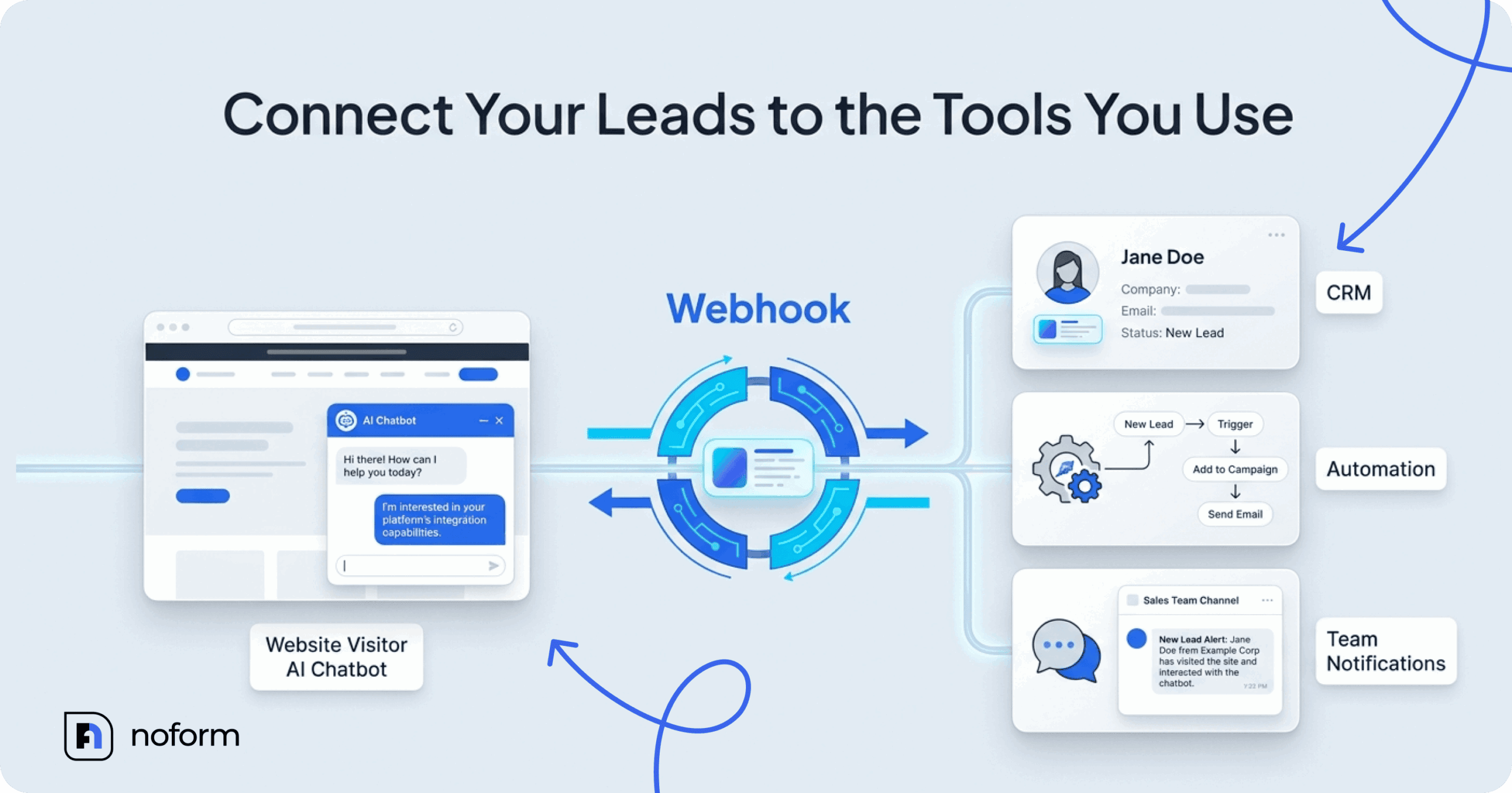
Think of a webhook as an instant notification from one app to another. Instead of you constantly checking for updates, the app sends a message the moment a specific event happens.
For NoForm AI, that event is a new lead. When a website visitor shares details that match your lead criteria, NoForm AI automatically sends those records directly to the software you use, like your CRM, help desk, or Slack.
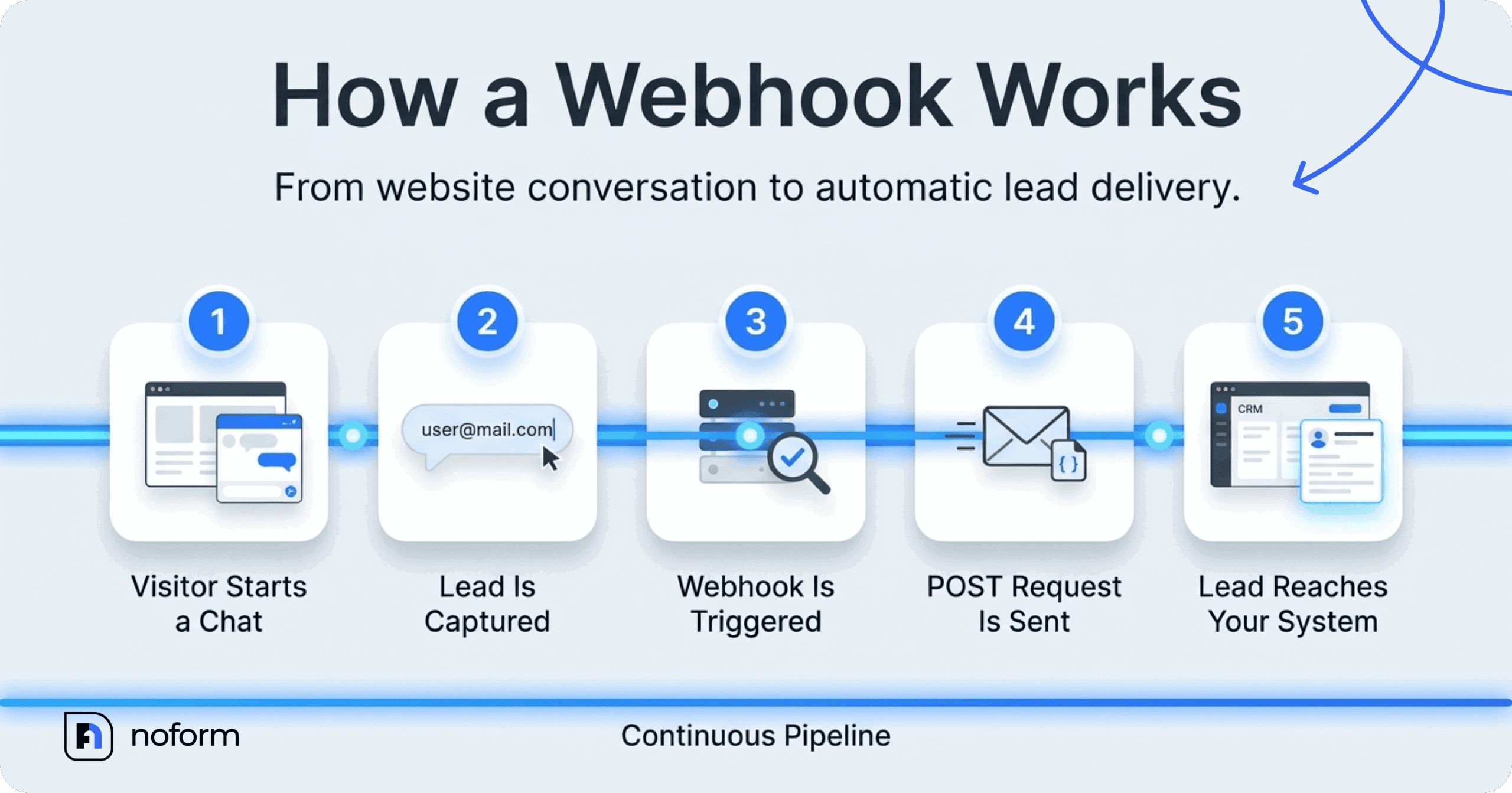
The webhook triggers exactly once per conversation: the first time a visitor shares a detail you’ve marked as lead-qualifying in your assistant settings. This works for leads captured through both the popup chat widget and the embedded chat.
For example, a visitor asks about your services, gets answers from your AI sales assistant, and shares their email address. When that conversation meets your lead settings, NoForm AI can send the collected details and a conversation summary to your sales system. Your team can follow up immediately without ever opening the NoForm AI dashboard.
Why use a webhook for lead delivery?
NoForm AI already tracks every lead in your dashboard and sends an email notification as soon as one is captured. That works perfectly for smaller teams. But as your sales team grows, they usually live inside a CRM, a help desk, or a team chat like Slack, and no one wants to waste time copying and pasting data between browser tabs.
A webhook bridges that gap. The lead’s contact info, the conversation summary, and the traffic source all land exactly where your team already works. Because the summary tells the rep what the visitor asked, and the source shows where they came from, your team can personalize their very first follow-up.
How to set up a webhook in NoForm AI
You can configure a webhook yourself if you have administrator access to your NoForm AI organization and a receiving endpoint.
Step 1: Access the Integrations Tab
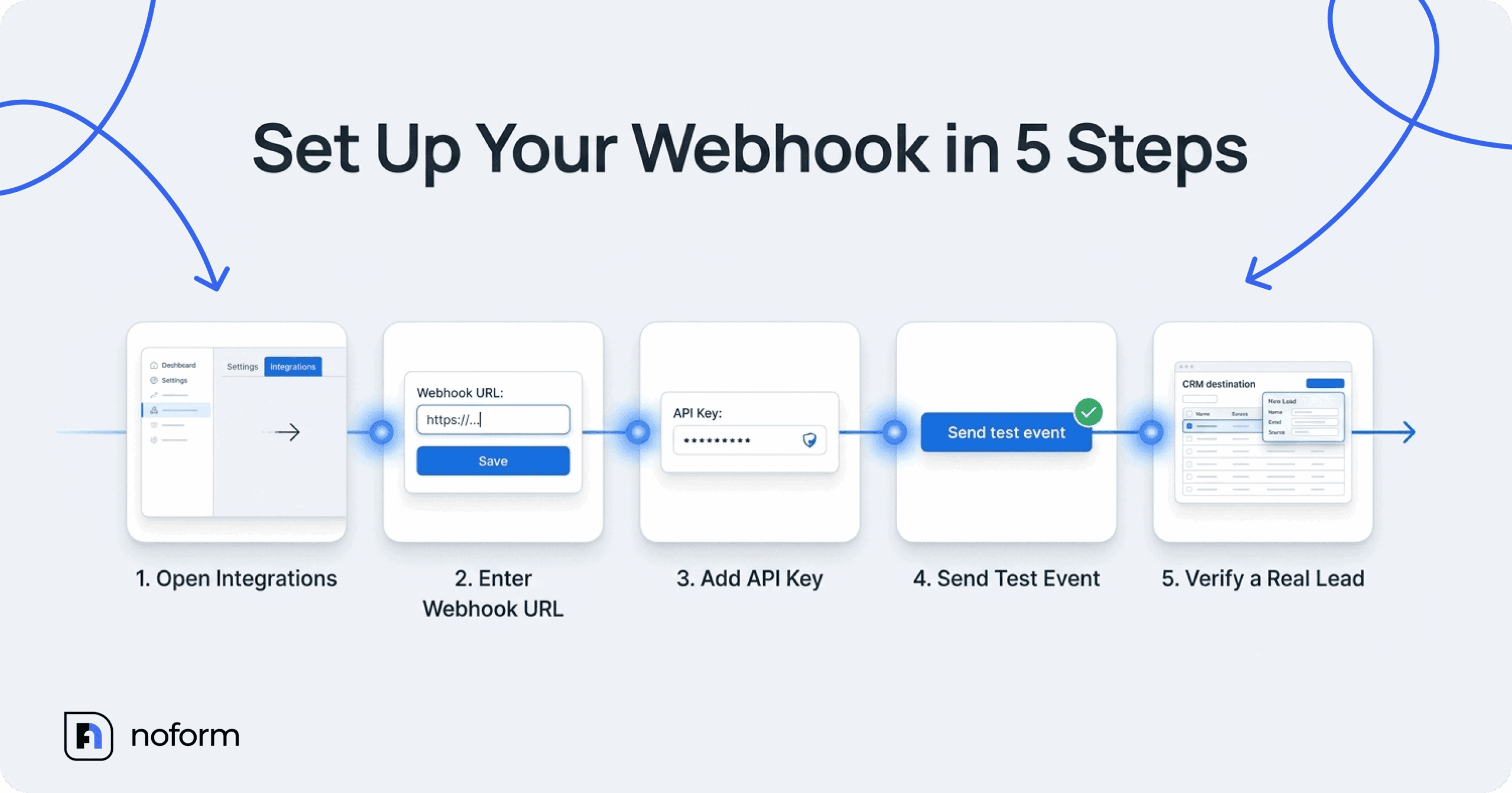
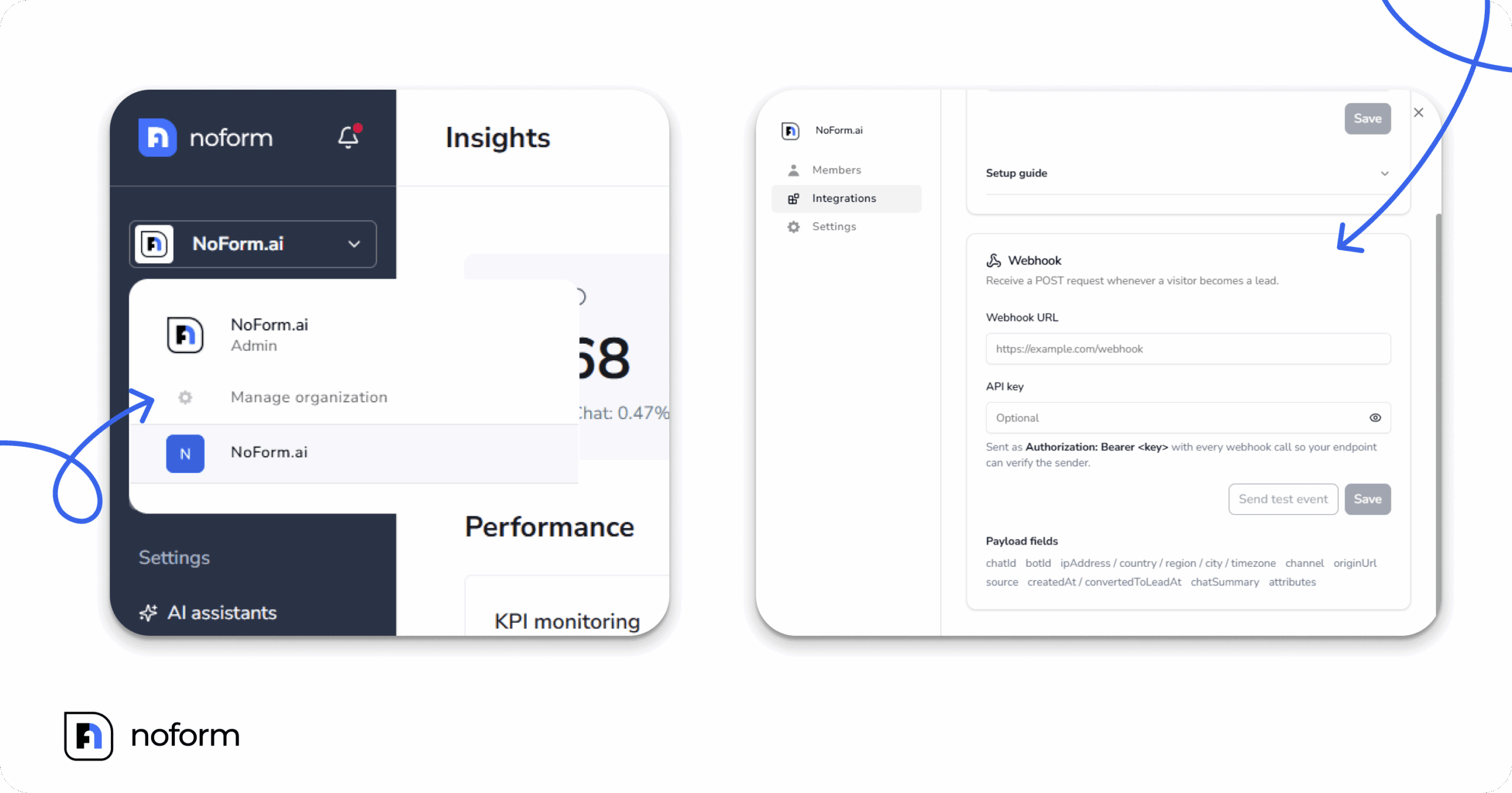
- Sign in to your NoForm AI dashboard.
- Click your organization name in the sidebar.
- Select Manage organization.
- Open the Integrations tab.
- Find the Webhook card.
The tab also contains the Google Analytics 4 integration. If your organization has multiple assistants, check which assistant is named above the integration cards so you configure the correct one.
Step 2. Enter your webhook URL
Type the full address of your receiving endpoint into the “Webhook URL” field (for example, https://example.com/webhook, then click Save. A green status line reading “Webhook settings updated.” confirms the save.
To ensure data security and successful delivery, your endpoint address must pass the following validation rules:
- It must start with https://. http:// addresses are not accepted.
- It must be a complete, valid web address.
- It can hold up to 2,048 characters.
- It must point to a public address on the internet. An address that resolves to a private, internal, or loopback address is rejected.
- It must not carry a username or password in the URL string itself.
To turn the webhook off at any time, simply clear the Webhook URL field and click Save.
Step 3. Add an API key for authentication
The API key field is optional, but using a secret key is recommended to help your endpoint verify incoming requests.
Whatever custom string you type here travels with every single webhook call in the HTTP header as Authorization: Bearer <key>. This lets your receiving endpoint mathematically confirm the request genuinely originated from NoForm AI, not an unauthorized third party guessing your endpoint URL.
To implement this securely:
- Choose a long, random string and keep it secret.
- Enter it into the API key field and click Save.
- On your receiving server, strip the Bearer prefix from the Authorization header.
- Compare what is left against your saved key, and reject the request (HTTP 401 or 403) if the two do not match.
If you leave the API key field empty, NoForm AI still sends an Authorization header, passing the literal text Bearer undefined.
Step 4. Send a test event
Before relying on the integration, check that your endpoint can receive a request.
- Save your webhook URL.
- Click Send test event on the Webhook card.
- Review the status message displayed below the card.
The test event uses the same request format and Authorization header as a real lead. Its payload includes “test”: true, a sample conversation ID of 0, example lead attributes, and placeholder location information.
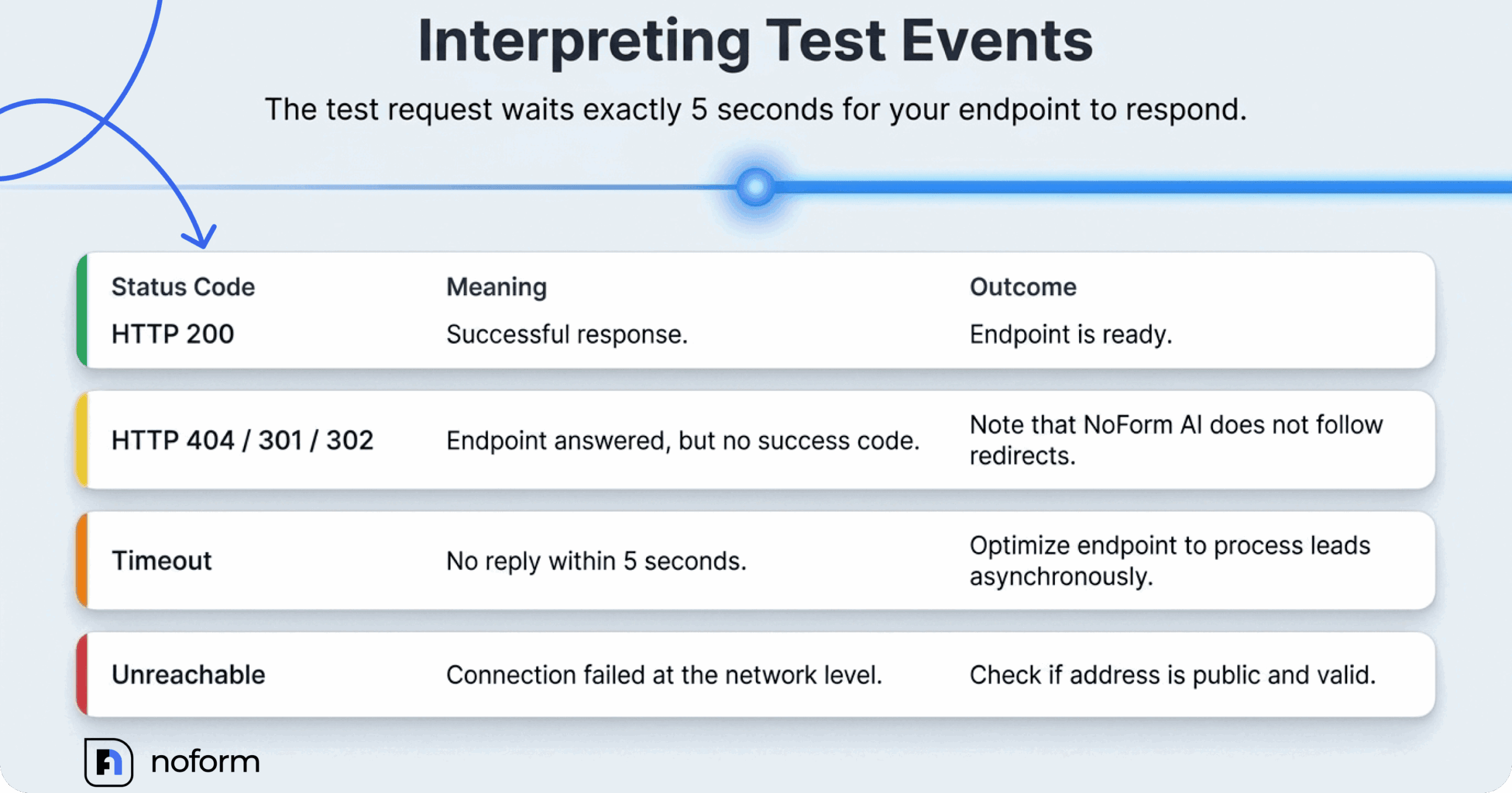
The test request waits up to five seconds for a response.
Status message | What it means |
Your endpoint received the test event (HTTP 200). | Your endpoint returned a successful HTTP response. |
Your endpoint returned HTTP 404, or another status code. | Your endpoint answered, but not with a success code. Redirect codes like 301 and 302 appear here as well, because NoForm AI does not follow redirects. |
Your endpoint didn’t respond within 5 seconds. | The request reached your server, but no reply was generated in time. |
We couldn’t reach your endpoint. | The address could not be resolved, or the connection failed at the network level. |
A successful test confirms that the endpoint can receive the sample request. It does not prove that your lead qualification settings or downstream automation are configured correctly.
Step 5. Check a real lead
Open your website in a private browser window and start a conversation with your NoForm AI assistant. Share a detail that qualifies the conversation as a lead, such as an email address, provided that attribute is enabled for lead qualification.
Then check your NoForm AI dashboard and receiving system to confirm that the lead was recorded and the webhook arrived.
NoForm AI processes newly qualified conversations on a background cycle that runs every minute. Real lead requests normally reach your endpoint within a minute or two of the visitor sharing the qualifying detail.
The webhook works with both the chat bubble widget and embedded AI chat.
What information does the webhook send?
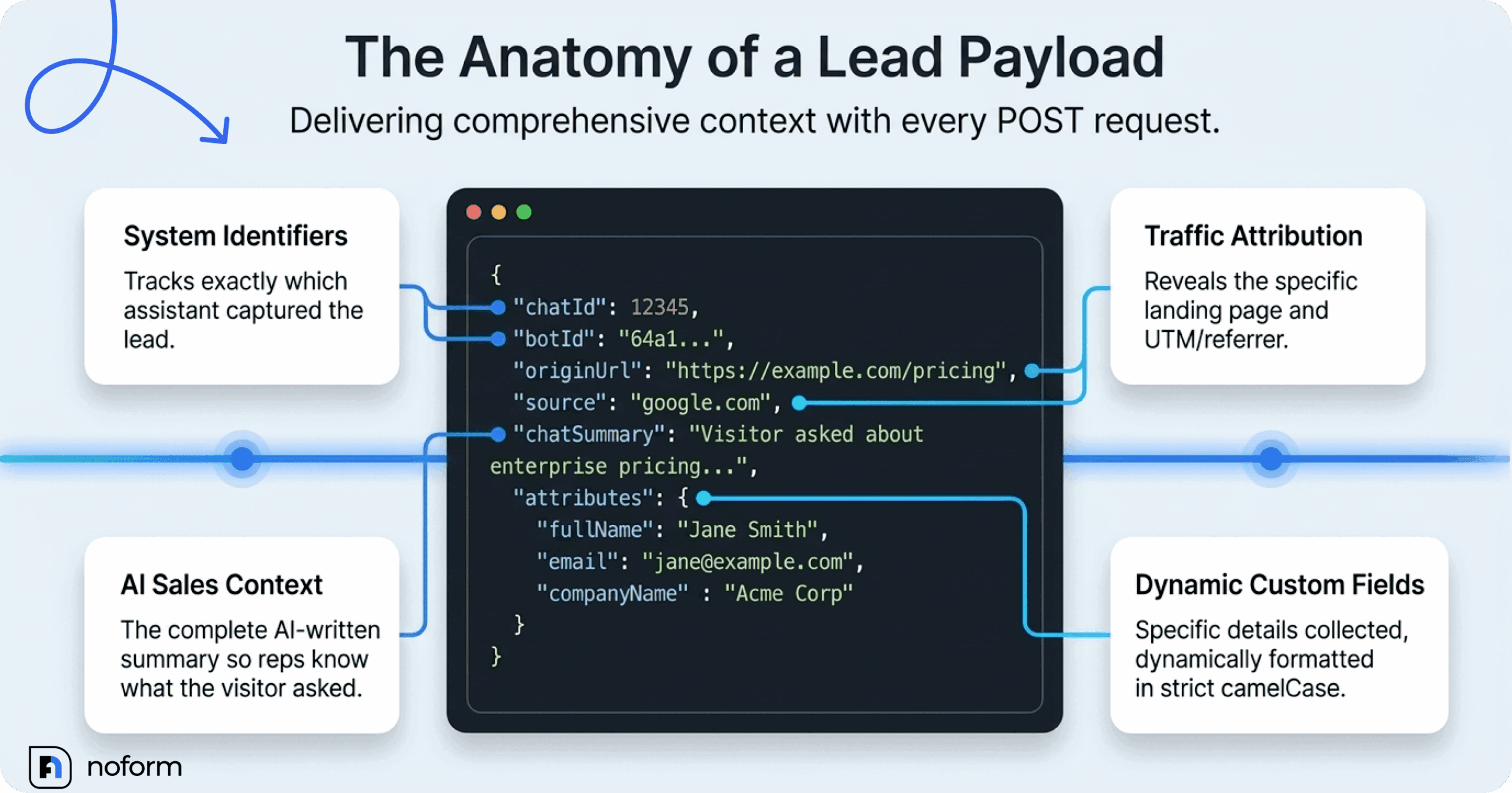
NoForm AI sends Content-Type: application/json and a JSON body containing the comprehensive lead record.
Field | Type | What it holds |
chatId | number | Identifier of the conversation |
botId | string | Identifier of the chatbot that captured the lead |
ipAddress | string | The visitor’s IP address |
country | string | The visitor’s country as a two-letter code (e.g., US) |
region | string | The visitor’s region or state |
city | string | The visitor’s city |
timezone | string | The visitor’s timezone |
channel | string | WIDGET for the chat bubble, EMBEDDED_AI_CHAT for the embedded chat |
originUrl | string | The page the conversation took place on |
source | string / null | Where the visitor came from (UTM or referrer) |
createdAt | date | When the conversation started |
convertedToLeadAt | date | When the conversation qualified as a lead |
chatSummary | string | The AI-written summary of the conversation |
attributes | object | The specific lead attributes the assistant collected |
The attributes object dynamically changes based on the data you configured your chatbot to collect. Attribute names arrive in strict camelCase formatting, meaning a custom attribute named “Company Name” in your dashboard becomes companyName in the JSON payload.
Example webhook payload
The following example shows what a real lead request might look like. The names and details are illustrative.
{
  "chatId": 12345,
  "botId": "64a1b2c3d4e5f6a7b8c9d0e1",
  "ipAddress": "203.0.113.42",
  "country": "US",
  "region": "California",
  "city": "San Francisco",
  "timezone": "America/Los_Angeles",
  "channel": "WIDGET",
  "originUrl": "https://example.com/pricing",
  "source": "google.com",
  "createdAt": "2026-07-20T14:22:00.000Z",
  "convertedToLeadAt": "2026-07-20T14:25:33.000Z",
  "chatSummary": "Visitor asked about enterprise pricing and requested a demo.",
  "attributes": {
    "fullName": "Jane Smith",
    "email": "[email protected]",
    "companyName": "Acme Corp"
  }
}
No-code automation alternatives
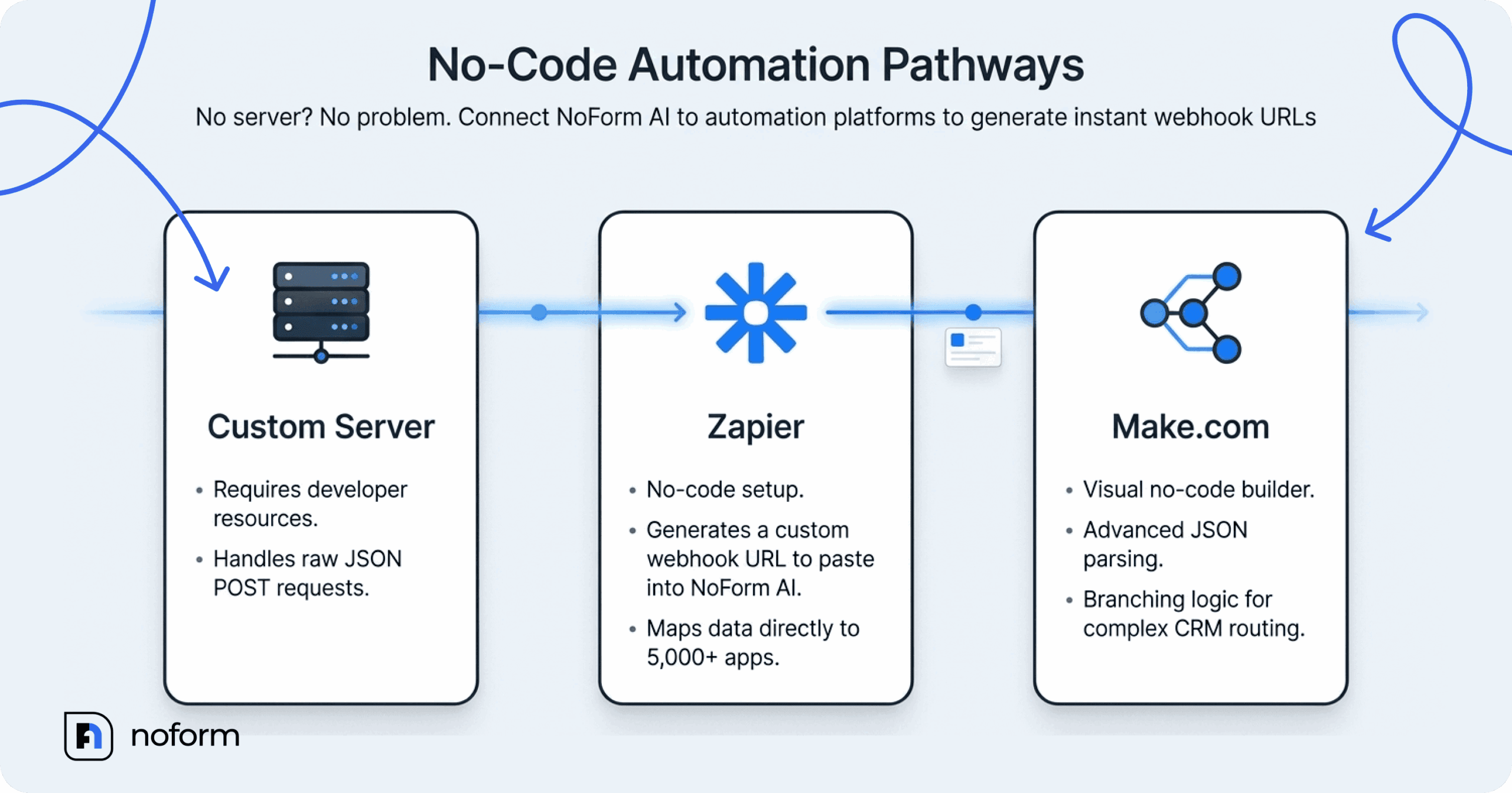
If you do not run your own server or endpoint, you can easily connect NoForm AI to an automation tool like Zapier.com or Make.com. These tools can generate a custom webhook URL for you. Paste that generated URL into the Webhook URL field in NoForm AI. From there, your automation tool can parse the incoming JSON payload and map the fields directly into your CRM, a Google Spreadsheet, a Slack channel, or any other tool.
For platform-specific instructions, follow the NoForm AI guides: Automation Instructions for Zapier and Automation Instructions for Make.
How to troubleshoot webhook integrations
If your integration doesn’t work as expected, start by checking the connection and then verify that a real conversation qualifies as a lead.
The test event fails
Check that the URL is correct, uses HTTPS, and points directly to the final endpoint. If your endpoint returns an error, review its logs and confirm that it accepts POST requests with a JSON body.
If the test times out, check whether your endpoint responds promptly. Avoid waiting for lengthy database operations or third-party API calls before returning an HTTP response.
The test succeeds, but no real leads arrive
A successful test only confirms that the sample request can reach your endpoint. Real lead delivery depends on a conversation meeting your lead qualification rules.
Open the assistant’s Lead qualification tab and confirm that at least one attribute is marked as lead-qualifying. Then check whether new leads appear in your NoForm AI dashboard.
Also verify that you’re testing the correct assistant and that the webhook URL has been saved.
The webhook arrives, but fields are missing
Inspect the complete JSON payload and compare its field names with your destination’s field mapping. Remember that the attributes object depends on the attributes your assistant collects, so its contents can vary between chatbots and conversations.
Check whether your automation platform expects nested fields such as attributes.email or requires you to map each field explicitly.
The endpoint is down or returns an error
NoForm AI does not retry failed webhook deliveries. Each lead is sent once, so a failed or timed-out request is not automatically resent.
However, a failed webhook does not prevent the lead from being saved in your NoForm AI dashboard or the lead notification email from being sent. The failure affects the outbound copy to your system, not the original lead record.
To reduce the risk of missed integrations, return a successful HTTP status promptly, then process the lead asynchronously. Monitor failed requests on your receiving side and establish a recovery process for any records that were not delivered.
Send NoForm AI leads directly to your workflow
Webhook integrations connect NoForm AI’s website lead generation with the systems your team already uses. Once configured, new leads can reach your CRM, automation workflows, or internal applications with the context needed for follow-up.
Ready to turn more website conversations into qualified leads? Try NoForm AI to answer visitor questions, capture contact details, and send your team actionable lead summaries around the clock.